UIImage from URL with Swift

UIImage from URL tutorial: If you are new in Swift for iOS 8 and you want to load an image in a UIImage view from URL, then you are in the right place. In this tutorial you'll learn how to load an UIImage from URL with Swift.

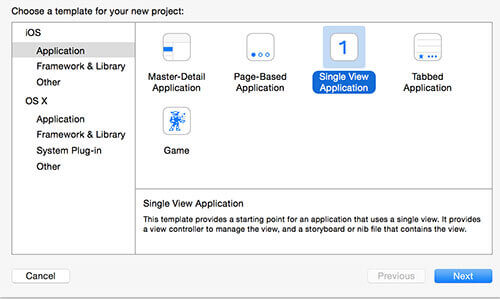
Create a new single view swift project for iOS.
UIImage from URL with Swift

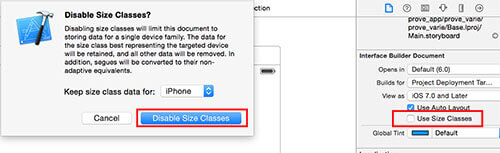
 From the Main.storyboard you can for simplicity turn off the use size classes option.
UIImage from URL with Swift

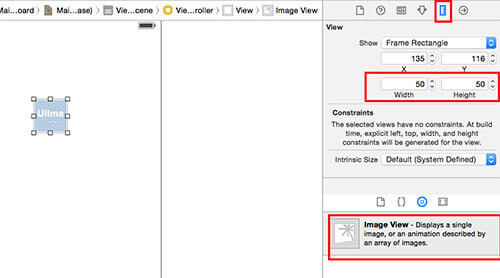
Now you can add, inside the view in the Main.storyboard, the Image view element. Once added the UIImage component, you can click on it and access on the size inspector section. Here, under the view section, you can set the frame rectangles to a size of 50 x 50. In the screenshot below I've highlighted where to find the size inspector and the section where to edit the width and the height of the UIImage component. 
UIImage from URL with Swift

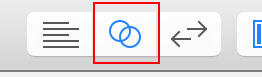
Now the code part can begin. The first thing you've to do is to connect the UIImage element that you've previously added to a variable. In this way you can access to the UIImage component directly through this variable. With the Main.storyboard opened just click on the assistant editor. It's the button posed on the right-top defined by the two circles I've reported in the figure below.
UIImage from URL with Swift

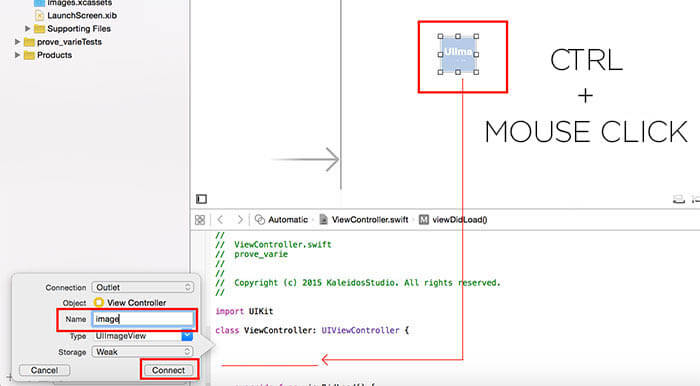
The assistant editor is a great tool that allows you to conenct a UI component to a variable or to an action. Once pressed, the view will split into two parts. The one on the top is your Main.storyboard, while on the bottom the view controller part will be displayed. The View Controller is the class that is called as a first thing when your application is starting. By pressing the CTRL button, you can click on the UIImage component in the Main.storyboard and with your mouse you've to drag your mouse to the bottom part of the screen, just above the viewDidLoad function. Once released the mouse, you can type the variable name and press Connect.
UIImage from URL with Swift

Now you can exit from the assistant editor by pressing the button on the left of the assistant editor.

UIImage from URL with Swift

You can now open the ViewController.swift class and write the load_image function. The image_element variable is the name of the variable you've previously choosen to connect the element. This function call the iOS sendAsynchronousRequest function that performs a background asyncronous request.  

func load_image(urlString:String)
{

     var imgURL: NSURL = NSURL(string: urlString)!
     let request: NSURLRequest = NSURLRequest(URL: imgURL)
     NSURLConnection.sendAsynchronousRequest(
                   request, queue: NSOperationQueue.mainQueue(),
                   completionHandler: {(response: NSURLResponse!,data: NSData!,error: NSError!) -> Void in
         if error == nil {
               self.image_element.image = UIImage(data: data)
         }
    })

}

You can now load the image in the viewDidLoad function by writing:

load_image("http://www.kaleidosblog.com/tutorial/kaleidosblog.png")

You can download the code for this example here.

UPDATE: download the swift 2 code example from here

Comments 26

Comments are closed: this is a read-only archive.

  1. victordonker
    How can I use this for multiple (12) images? Seems like this needs one function per image?
    1. Andrea Author
      Hi, thank you for your comment. You have to pass as a parameter of the load_image function also the UIImage reference. In this way as soon as the image is loaded you have the image reference in order to be able to directly assign it. So just a function, multiple call :). If you need, I prepare for you an example.
    2. victordonker
      If you would like to, please! Or just have a look at this:
      http://pastebin.com/RyKA83N3
      Is this about what you meant?
    3. Andrea Author
      Yes, or also by passing directly the UIImage variable, here an example: http://www.kaleidosblog.com/tutorial/example.txt

      When dealing with a lot of elements of the same type, you can also use a collection view!
    4. victordonker
      Thanks a lot.
      Guess this might be helpful for the UIConnection View: http://www.raywenderlich.com/78550/beginning-ios-collection-views-swift-part-1

      Will check out both soon!
    5. Andrea Author
      Hi Victor, ok you're welcome! Yes, the site you've linked could be usefull, but soon I'll write a tutorial about this topic, so stay tuned! :-)
    6. victordonker
      I can't really get the example.txt to work, can you elaborate on this? I actually don't need this grid overview, building a vertical scroll view with larger cards/images, kinda like the App Bar. Any experience with this by any chance?
    7. Andrea Author
      Here you can find the zip project example that downloads multiple images: http://www.kaleidosblog.com/tutorial/multiple_images.zip
  2. victordonker
    Oh yes that looks definitely cleaner! Sorry to keep bothering you here, but how do I transform them into buttons?
    1. Andrea Author
      Hi Victor, you can do it in two ways. 1. turn on the user interaction enabled option for the uiimage and add the UITapGestureRecognizer to the image. 2. Insert a UIButton instead of UIImage, set the button background using this code button.setImage(UIImage(data: data), forState: .Normal) and link the IBAction event. If you need an example with the two solutions just tell me.
  3. GEORGE
    code doesn't compile with swift 2
    1. Andrea Author
      Hi, thank you for your comment. Here you can download the updated version: http://www.kaleidosblog.com/tutorial/uiimage_from_url_swift_2.zip thank you again
  4. Mali
    Hey Andrea, thanks!!
  5. Maha
    It works great.. is there any way to implement multiple images from url using uicollectionview instead of individual image in Xcode 7 swift 2.0
    1. Andrea Author
      Hi, you've to call the load image function for each cell. You can also define an array to cache the downloaded images, in order to avoid to download the images multiple times while scrolling. If you need I'll do an example for you.
  6. Maha
    It'll be so helpful if u do an example because i'm in the learning stage
    1. Andrea Author
      In the next days I'll write the new tutorial about this. I'll inform you with an email when it is ready! :-)
    2. Maha
      Okay Andrea. Thanks in advance
    3. Andrea Author
      Here it is. Hope it helps! http://www.kaleidosblog.com/uicollectionview-image-gallery-download-and-display-images-inside-the-cell
  7. Raja
    i want to save profile photo and get profile from using url ... pls help me
    1. Andrea Author
      Hi, do you want to download and display multiple images in one page? Consider to use a listview or an uicollectionview to display your images. Check this tutorial here: http://www.kaleidosblog.com/uicollectionview-image-gallery-download-and-display-images-inside-the-cell
  8. Matt
    NSURLConnection's sendAsynchronousRequest has been deprecated since iOS 9.0

    Use NSURLSession's dataTaskWithRequest instead
    1. Andrea Author
      Hi, thank you for your comment. You are right, the tutorial has been written for ios 8 and adapted by mantaining the same function for ios 9. I'll write a new tutorial using the NSURLSession method. Thank you again.
    2. Matt
      Cool, yeah just wanted to give a heads-up. Thanks for the post!
  9. JohnnyDarko
    Hey friends! As you know there are a lot of great ways to make money online. If you are involved with Binary Options, or maybe even if you are new to Binary Options and want to learn a little more about it and how it is a great way to be earning extra money on the side in your free time , then you should maybe consider buying AutoBinarySignals.
    [url=https://youtu.be/YNDg6j-ntvs]AutoBinarySignals[/url] is an automated solution which will help you trade and earn money with Binary Options. This software will trade Binary Options for you. It is simply just a ?set-it-and-forget-it? system which will work for you on autopilot.
    [url=http://www.facebook.com/autobinarysignals101]AutoBinarySignals[/url] will only take a few minutes of your time to set up, and it is simple to learn. There will be no confusing charts, baffling analysis or confusing methods to learn. This system will work for you once it is set up.
  10. abc
    its a awesome tut sir tq so much